SSH Public Key Authentication
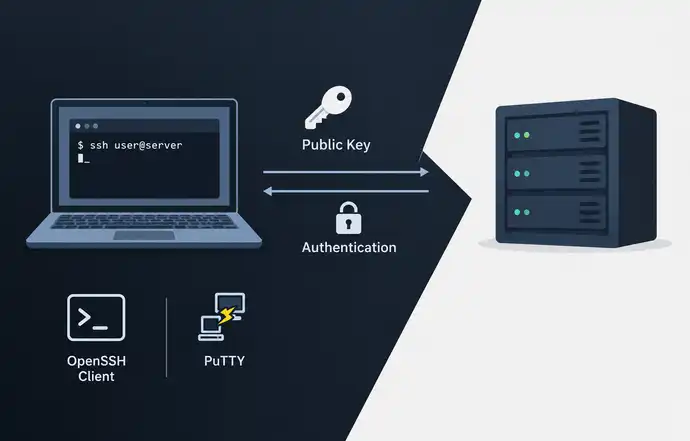
If your workstation doesn’t have an SSH key pair set up yet, it’s time to fix that.
In a Windows environment, PuTTY is commonly used, while Linux relies on the standard openssh-client.
You can generate keys on Windows using PuTTYgen. The recommended and most secure key type is Ed25519 (EdDSA).
Windows#
Installing the PuTTY Client#
You can always download the latest version from the official developer page .
Key Pair Generation#
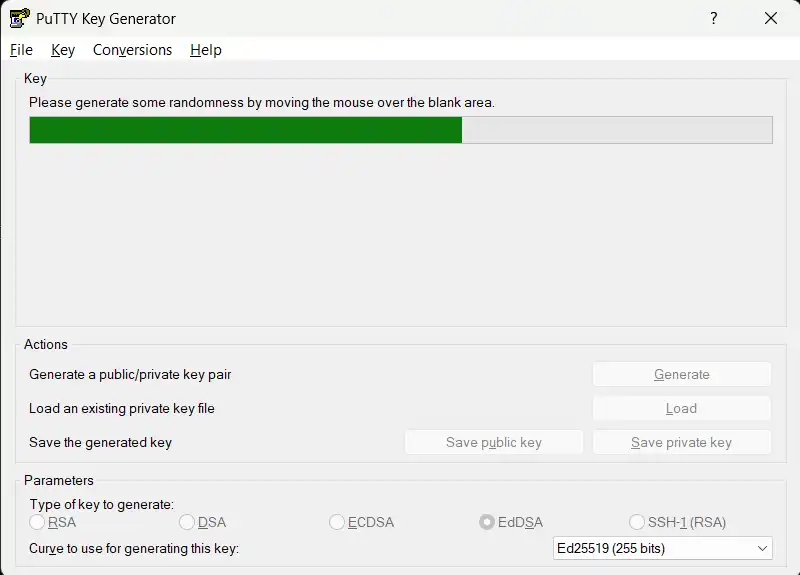
To create a key pair, open PuTTYgen. At the bottom of the window, select EdDSA as the key type and Ed25519 as the curve.
Click Generate to start the process.
To generate enough entropy (randomness), the application will ask you to move your mouse randomly inside the window.
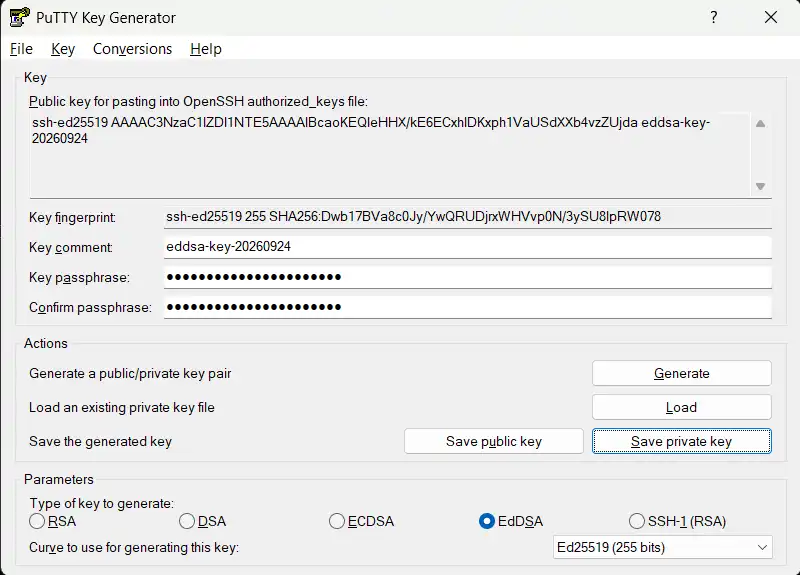
Fill in the Key passphrase and Confirm passphrase fields with a strong passphrase. Afterwards, save the public and private key parts to your disk using the Save public key and Save private key buttons.
GNU/Linux#
Client Setup#
The required software is likely already installed, as it comes prepackaged with most Linux distributions.
In the RHEL family, the package is named openssh-clients, while Debian, Ubuntu, and their derivatives use openssh-client.
Key Pair Generation#
Run the following command as a regular (non-root) user and secure your key with a strong passphrase:
ssh-keygen -t ed25519
By default, the keys will be saved in your home directory:
~/.ssh/id_ed25519- private key;~/.ssh/id_ed25519.pub- public key.
Adding the Public Key to the Server#
The public key needs to be appended to the target server’s ~/.ssh/authorized_keys file.
Remember: the private key must always stay on your machine and should never be shared with anyone.
The authorized_keys file contains a list of allowed public keys, with each key on a separate line.
If you are working from a Linux client, transferring the public key to the server takes just a single command using ssh-copy-id:
# ssh-copy-id <server>
ssh-copy-id deb-lab1.lan
With Windows, the process is slightly different, but straightforward.
Adding a Public Key from Windows#
PuTTYgen saves public keys in a format different from what OpenSSH on the Linux server expects.
Here is an example of a public key saved by PuTTYgen:
---- BEGIN SSH2 PUBLIC KEY ----
Comment: "eddsa-key-20260925"
AAAAC3NzaC1lZDI1NTE5AAAAIPyQ589WcSmwJQr2M87givLakh8r0RLWfl3PAmP/
LKQc
---- END SSH2 PUBLIC KEY ----
And this is how it must be formatted inside ~/.ssh/authorized_keys on the server:
ssh-ed25519 AAAAC3NzaC1lZDI1NTE5AAAAIPyQ589WcSmwJQr2M87givLakh8r0RLWfl3PAmP/LKQc [email protected]
The fields are space-separated:
keytype- key algorithm (in our case,ssh-ed25519);base64-encoded key- the public key content formatted on a single line;comment- an optional label to identify the source (e.g., userjoeon theworkstationPC).